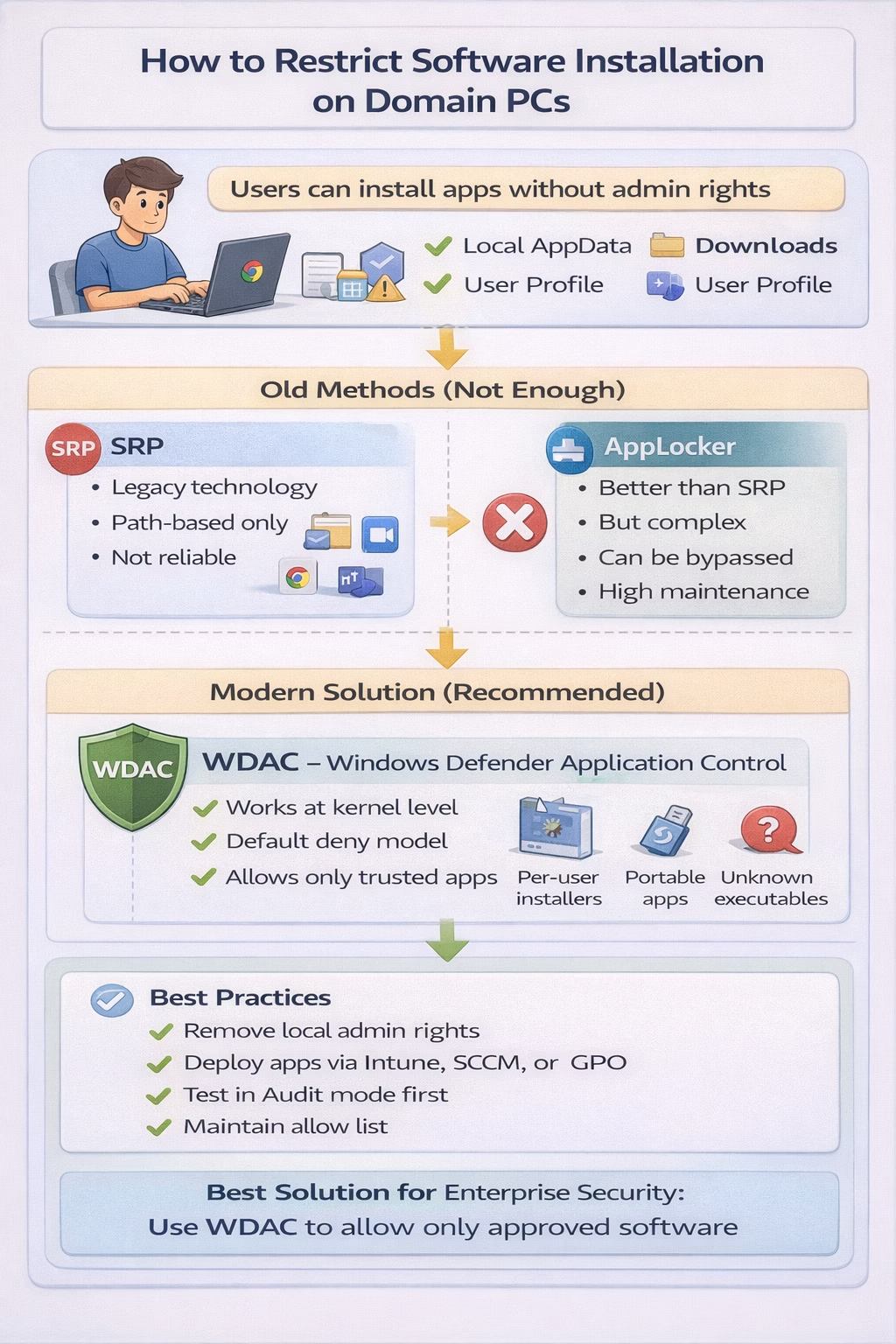
A Practical Guide for Modern Enterprise Environments
Introduction
Allowing users to install software freely on corporate devices introduces significant security, operational, and compliance risks. Unauthorized applications can lead to malware infections, data leakage, licensing violations, and increased support overhead.
For this reason, many organizations enforce a strict policy:
Only administrators should be able to install and run software.
However, enforcing this requirement in modern Windows environments is more challenging than it appears. This article explains the key challenges and outlines reliable approaches to prevent unauthorized software installation on domain-joined Windows computers.
The Modern Installation Challenge
Traditional assumptions about software installation no longer apply. Many modern applications are designed to install per user rather than system-wide.
Common examples include:
- Web browsers
- Collaboration tools
- Messaging applications
- Utilities and productivity tools
These installers:
- Do not require administrative privileges
- Install into user-writable locations such as:
- %LOCALAPPDATA%
- %APPDATA%
- %USERPROFILE%\Downloads
- May continue installation even if a User Account Control (UAC) prompt is cancelled
As a result, standard domain users can install applications without administrative credentials, even in well-managed environments.
Limitations of Traditional Controls
Software Restriction Policies (SRP)
Software Restriction Policies were historically used to control application execution. However, SRP relies primarily on path-based rules and is no longer well suited for modern environments.
Common limitations include:
- Difficulty blocking per-user installations
- No reliable publisher or digital signature trust
- Risk of unintentionally blocking Windows components
- Inconsistent behavior across applications
Microsoft considers SRP a legacy technology, and it is not recommended for strict application control.
AppLocker
AppLocker provides more advanced control compared to SRP and can restrict:
- Executable files
- Windows Installer packages
- Scripts
- Packaged applications
While AppLocker improves visibility and control, it has several operational challenges:
- Requires precise configuration and default allow rules
- May still allow execution from user-writable locations
- Windows Installer enforcement may be incomplete
- Ongoing maintenance is required
- Administrative overhead can be significant
AppLocker can reduce risk when properly implemented, but it does not provide complete protection against modern per-user installation methods.
Why Applications Still Install Without Admin Rights
Many modern applications are intentionally designed to operate in a user context.
Typical behavior:
- Installer is launched
- Elevation is requested
- User cancels the UAC prompt
- Installer continues using per-user mode
Applications such as Google Chrome, Microsoft Teams, Zoom, Opera, and Brave commonly follow this pattern.
This behavior is by design and cannot be fully controlled using legacy policy-based methods alone.
Windows Defender Application Control (WDAC)
What is WDAC?
Windows Defender Application Control (WDAC) is Microsoft’s modern application control solution designed to prevent unauthorized software from running on Windows devices.
WDAC operates at the kernel level, validating application trust before execution.
This allows WDAC to enforce control regardless of:
- Installation method
- Installation location
- User privileges
WDAC uses a default-deny model, allowing only explicitly trusted applications to run.
How WDAC Prevents Unauthorized Installations
Unlike traditional tools, WDAC evaluates applications at runtime instead of relying on file paths.
Trust can be defined based on:
- Microsoft-signed binaries
- Approved software publishers
- File hashes
- Enterprise-approved applications
This approach effectively blocks:
- Per-user installers
- Portable executables
- Script-based installers
- Droppers and embedded executables
Even if an application is successfully copied or installed, it cannot run unless it is trusted by policy.
Recommended Implementation Approach
Preferred Solution: WDAC
For organizations that require strong enforcement, WDAC is the most reliable option.
High-level implementation steps:
- Create a deny-by-default WDAC policy
- Allow Microsoft Windows components
- Allow approved enterprise applications
- Deploy the policy via Group Policy or Intune
- Perform software installations during controlled administrative maintenance windows
This ensures that standard users cannot install or run unauthorized software.
Alternative Option: AppLocker
If WDAC cannot be implemented immediately, AppLocker can be used as an interim control.
To improve effectiveness:
- Configure default allow rules for Windows components
- Enforce policies (not audit mode)
- Block execution from user-writable locations
- Restrict Windows Installer usage for non-administrators
- Ensure users are not members of the local Administrators group
Even with these measures, AppLocker requires ongoing maintenance and does not provide the same level of protection as WDAC.
Best Practices
- Remove local administrator rights from standard users
- Deploy approved software centrally using Intune, SCCM, or Group Policy
- Test policies in audit mode before enforcement
- Avoid legacy technologies such as SRP
- Establish a formal exception and change management process
Conclusion
Preventing unauthorized software installation on domain-joined Windows PCs has become increasingly difficult due to the widespread use of per-user installers and portable applications.
Traditional controls such as Software Restriction Policies are no longer effective, and AppLocker requires careful configuration and ongoing maintenance.
For organizations seeking reliable and enforceable protection, Windows Defender Application Control (WDAC) provides the strongest solution by ensuring that only trusted and approved software can run—regardless of how it is installed.