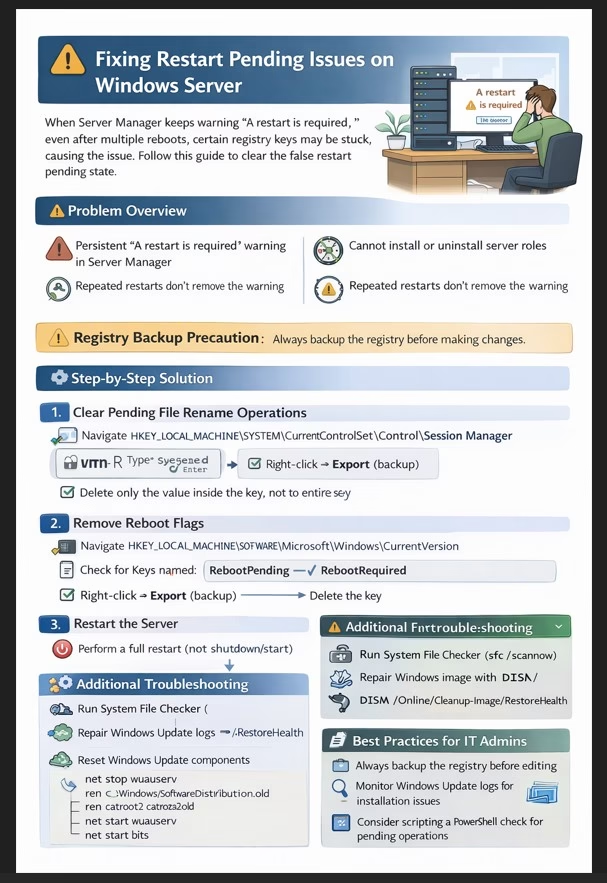
Problem Overview:
Windows Server administrators sometimes encounter an issue where the system repeatedly warns that a restart is required, even after multiple reboots. This issue blocks installing or uninstalling server roles, Windows Updates, or certain features.
This article explains why this happens, the registry keys involved, and provides safe, step-by-step solutions to fix the problem.
Why This Happens
Windows maintains several registry flags that track whether a restart is pending. These flags inform the system and applications that certain operations, such as:
- Completing Windows Updates
- Finishing server role or feature installations
- Renaming files during reboot (especially drivers)
have not been fully completed.
Sometimes, due to an incomplete update, aborted feature installation, or a stuck driver rename operation, these flags never reset, even after rebooting.
The main registry entries involved are:
| Registry Key | Location | Purpose |
|---|---|---|
| PendingFileRenameOperations | HKLM\SYSTEM\CurrentControlSet\Control\Session Manager | Tracks files that need to be renamed or deleted on next reboot |
| RebootPending / RebootRequired | HKLM\SOFTWARE\Microsoft\Windows\CurrentVersion | Indicates a system restart is required to complete updates or installations |
If these values are stuck, Windows believes a reboot is still required, and operations like role installation fail.
Symptoms
- Persistent “A restart is required” warning in Server Manager
- Cannot install or uninstall server roles
- Repeated restarts do not remove the warning
- Windows Updates may fail or remain incomplete
Step-by-Step Solution
⚠️ Precaution
- Always backup the registry before making any changes:
- Press
Win + R, typeregedit, press Enter - File → Export → Full Registry Backup
- Press
- If running on a virtual machine, take a snapshot
Step 1: Clear Pending File Rename Operations
- Open Registry Editor (
Win + R→regedit) - Navigate to:
HKEY_LOCAL_MACHINE\SYSTEM\CurrentControlSet\Control\Session Manager
- In the right pane, look for:
PendingFileRenameOperations
- If it contains values:
- Right-click → Export (backup)
- Delete only the value, not the entire key
These entries are usually old driver or system file rename requests that never executed. Deleting them is safe in most cases.
Step 2: Remove Reboot Flags
- Navigate to:
HKEY_LOCAL_MACHINE\SOFTWARE\Microsoft\Windows\CurrentVersion
- Check for keys named:
RebootPendingRebootRequired
- If present:
- Right-click → Export (backup)
- Delete the key
These keys signal to Windows that a restart is still pending. Removing them clears the false restart state.
Step 3: Restart the Server
- Perform a full restart (not shutdown/start).
- After reboot, the restart warning should disappear, and role installation/uninstallation should work normally.
Step 4: Verify Using PowerShell (Optional)
Open PowerShell as Administrator:
Test-Path "HKLM:\SYSTEM\CurrentControlSet\Control\Session Manager\PendingFileRenameOperations"
- If it returns False → issue resolved
- If True → revisit Step 1 carefully
Step 5: Additional Troubleshooting (if the problem persists)
- Run System File Checker (SFC):
sfc /scannow
- Repair Windows image with DISM:
DISM /Online /Cleanup-Image /RestoreHealth
- Reset Windows Update components (if stuck updates are suspected):
net stop wuauserv
net stop bits
ren C:\Windows\SoftwareDistribution SoftwareDistribution.old
ren C:\Windows\System32\catroot2 catroot2.old
net start wuauserv
net start bits
- Optional: Boot into Safe Mode and then restart normally. Sometimes pending operations are cleared only in Safe Mode.
Why This Solution Works
- PendingFileRenameOperations tracks old files or drivers waiting for reboot. If they remain, Windows blocks role installation.
- RebootPending/RebootRequired keys are Windows’ way of saying a restart is needed. Removing them clears the false signal.
- These entries are safe to delete because they only represent stale pending operations that have already failed or been partially executed.
Best Practices for IT Admins
- Always backup the registry before editing
- Use this method before performing more invasive troubleshooting
- Monitor Windows Update and role installation logs to prevent incomplete installations
- Consider scripting a PowerShell check for
PendingFileRenameOperationsacross multiple servers for proactive maintenance
Conclusion
The “Restart Pending” loop is a common Windows Server problem caused by stale registry entries or incomplete operations. By carefully clearing:
PendingFileRenameOperationsRebootPending/RebootRequired
and restarting, you can restore normal server functionality, allowing role installation and Windows Updates to proceed.
Pro Tip: Always maintain a backup and document registry changes for IT audits.