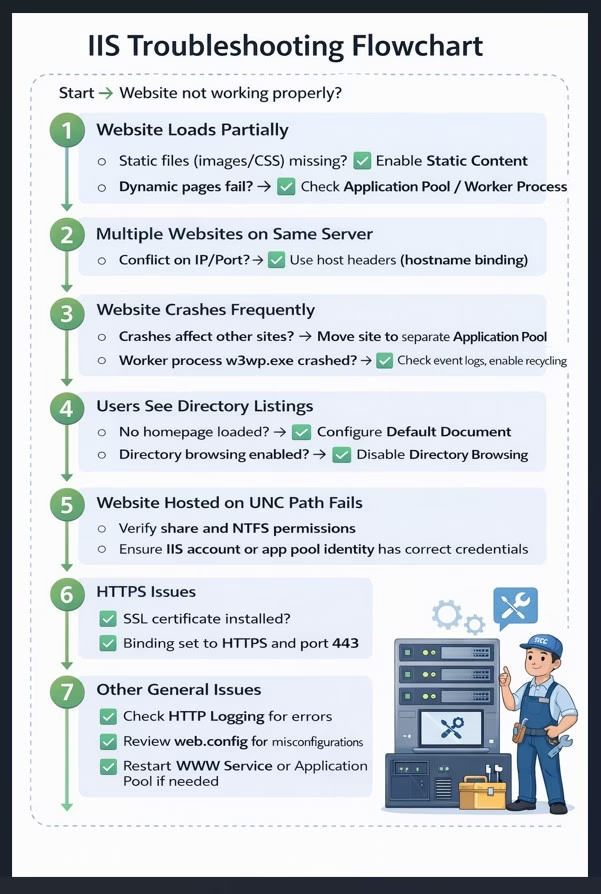
When a website hosted on Internet Information Services (IIS) is not working properly, troubleshooting can quickly become confusing — especially under pressure. Broken pages, crashes, HTTPS errors, or missing content can all point to different root causes.
This IIS troubleshooting flowchart–based guide simplifies the process. Instead of guessing, you follow a logical, step-by-step approach to identify the problem and apply the correct fix.
Whether you are a system administrator, DevOps engineer, or website owner, this guide will help you diagnose and resolve common IIS issues faster, reducing downtime and improving website stability.
Start: Website Not Working Properly?
Begin by identifying the most visible symptom. Once you know what’s wrong on the surface, follow the corresponding troubleshooting path below.
1. Website Loads Partially
If the website opens but looks broken — missing images, styles, or functionality — this usually points to configuration issues.
Static Files Missing (Images, CSS, JavaScript)
Possible Cause:
The Static Content feature is not enabled in IIS.
Solution:
✅ Enable Static Content via:
Server Manager → Add Roles and Features → Web Server (IIS) → Common HTTP Features → Static Content
This allows IIS to serve files like .css, .js, images, and fonts.
Dynamic Pages Fail (ASP.NET, PHP, etc.)
Possible Cause:
The Application Pool or worker process is not functioning correctly.
Solution:
✅ Verify the Application Pool is running
✅ Ensure the correct .NET CLR version is selected
✅ Check the w3wp.exe worker process
✅ Review Event Viewer for application errors
2. Multiple Websites on the Same IIS Server
Hosting multiple websites on a single IIS server is common — but misconfiguration can cause conflicts.
IP or Port Conflict
Possible Cause:
Two or more sites are bound to the same IP address and port.
Solution:
✅ Configure Host Headers (Hostname Bindings)
Each website should have a unique hostname to avoid conflicts.
3. Website Crashes Frequently
If the site goes down repeatedly or behaves unpredictably, it’s often related to resource isolation or application instability.
Crashes Affect Other Websites
Possible Cause:
Multiple websites are running under the same Application Pool.
Solution:
✅ Move the problematic website to a separate Application Pool
This isolates failures and prevents one site from impacting others.
Worker Process (w3wp.exe) Crashes
Possible Cause:
Application bugs, memory leaks, or incorrect configuration.
Solution:
✅ Review Windows Event Viewer (Application & System logs)
✅ Enable Application Pool Recycling
✅ Monitor memory and CPU usage
4. Users See Directory Listings Instead of a Webpage
If visitors see a list of files and folders, IIS is not serving a default page.
Homepage Not Loaded
Possible Cause:
No default document is configured.
Solution:
✅ Configure a Default Document such as:index.html, default.aspx, or index.php
Directory Browsing Enabled
Possible Cause:
Directory Browsing is turned on.
Solution:
✅ Disable Directory Browsing unless explicitly required
This improves both security and user experience.
5. Website Hosted on a UNC Path Fails
Websites hosted on network shares require additional permissions.
Solution:
✅ Verify Share Permissions and NTFS Permissions
✅ Ensure the Application Pool Identity or IIS service account has access
✅ Use a domain account if required for authentication
6. HTTPS Issues in IIS
If the website does not load securely over HTTPS, check the SSL configuration.
Solution:
✅ Confirm the SSL certificate is installed correctly
✅ Verify the site binding is set to HTTPS on port 443
✅ Ensure the certificate matches the site hostname
✅ Check certificate expiration and trust chain
7. Other General IIS Issues
For issues that don’t clearly match the scenarios above:
✅ Review IIS HTTP Logs for status codes (404, 500, 503, etc.)
✅ Check web.config for syntax errors or invalid settings
✅ Restart the WWW Publishing Service
✅ Recycle the Application Pool if needed
Conclusion
Troubleshooting IIS doesn’t have to be overwhelming.
This IIS troubleshooting flowchart provides a structured, practical approach to diagnosing and resolving common website issues. By starting with visible symptoms and working through configuration, permissions, and services step by step, administrators can:
- Reduce downtime
- Improve website reliability
- Resolve issues faster and more confidently
Whether you’re managing a single site or dozens of applications, following a logical IIS troubleshooting process is the key to maintaining a stable and secure web environment.